
The Reseller-level login for Clearly Cloud is where Resellers can see all their Clients and the Users under each Client, manage a few settings, and log in as any Client or User that belongs to that Reseller.
The standard Clearly Cloud hierarchy is:
-
Reseller Login
-
Client Login
-
User Login
-
-
Logging In (Home Page)
-
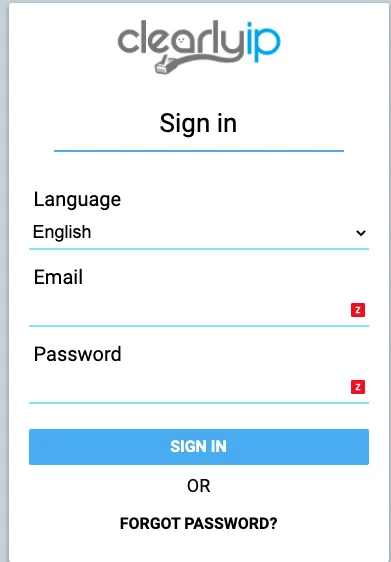
Navigate to the appropriate URL where your Client is hosted; for example, https://w.clearlyip.cloud. Log in with the Reseller username and password provided by Clearly IP during onboarding as a new Clearly Cloud Partner.
-
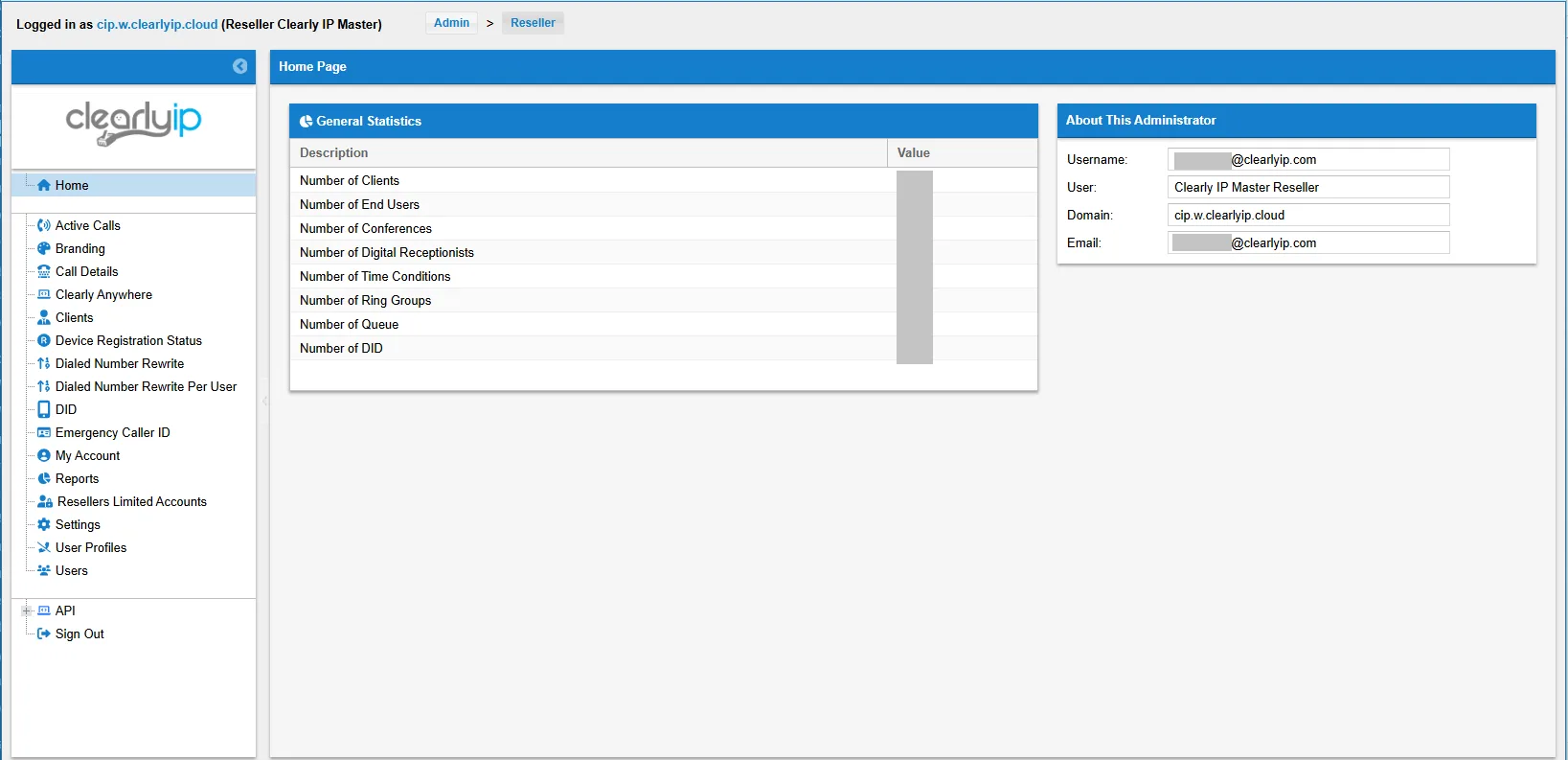
Once logged in, you will see all the information for the Reseller account you used.

Active Calls
-
Click the Active Calls menu option.
-
This page shows all active calls on the system for every Client under your Reseller account. It refreshes automatically every five seconds to display the most current active calls.

Branding
-
The Branding section allows the Reseller to set up branding elements for the CloudPBX GUI. When Clients log in using the Reseller Realm, they will see these branding changes.
-
Click the Branding menu option.

-
You will see two tabs at the top:
-
Branding
-
Client Pinned Links
-

-
Branding (tab)
-
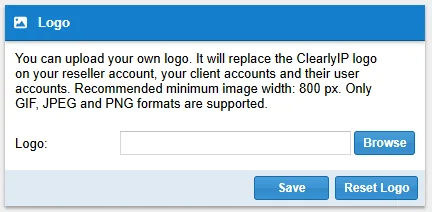
Logo – This allows you to upload your own logo to replace the ClearlyIP logo in the top-left corner of the CloudPBX GUI.
-

-
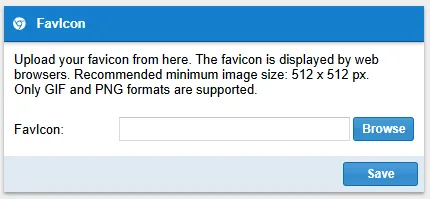
This allows you to upload the browser favicon shown in the browser tab.

-
Client Pinned Links (tab)
-
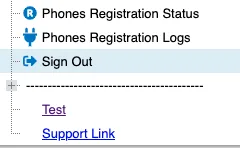
Here you can define custom URLs shown to your Clients when they log in to the WebGUI as a Client.
-
These links appear in the left navigation bar below the standard menu options.
-
-
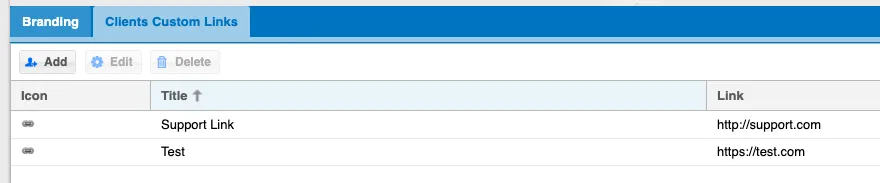
Here you can view the existing Custom Links and add, edit, or delete links.
-
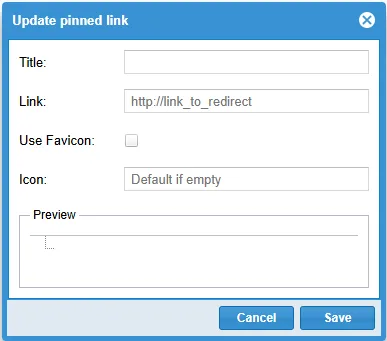
For each Custom Link, you can set the following fields.
-
Title – This is the name shown in the Menu bar to your clients for this link.
-
Link – The full URL where you want to direct the Client when they click the Title in the menu bar.
-
Icon – The icon displayed in the menu bar for this link.
-
Call Details
-
This page contains logs of every call made and received from each extension, including reports for all Clients you can access as the Reseller. You can filter calls using the search fields and export the log to a spreadsheet. CDR export to CSV is limited to 100,000 records.
-
Click the Call Details menu option.

-
From here, we can see information on each call, such as:
-
The available information includes the date and time, duration, User involved in the call, and the Caller ID of the other party. If the call was recorded, you will see a Play icon that lets you play the Call Recording.
-

-
If the call was not recorded, you will see a grayed-out icon indicating that no recording is available.

-
You can also highlight any call record and click the Download Recording or Delete Recording button above.

Clearly Anywhere
-
In this section, you can globally manage the Clearly Anywhere accounts associated with your Clients and devices.

-
There are two menus:
-
Push Notifications for Clearly Anywhere Devices.
-
Clearly Anywhere Users.
-

Push Notifications for Clearly Anywhere Devices
-
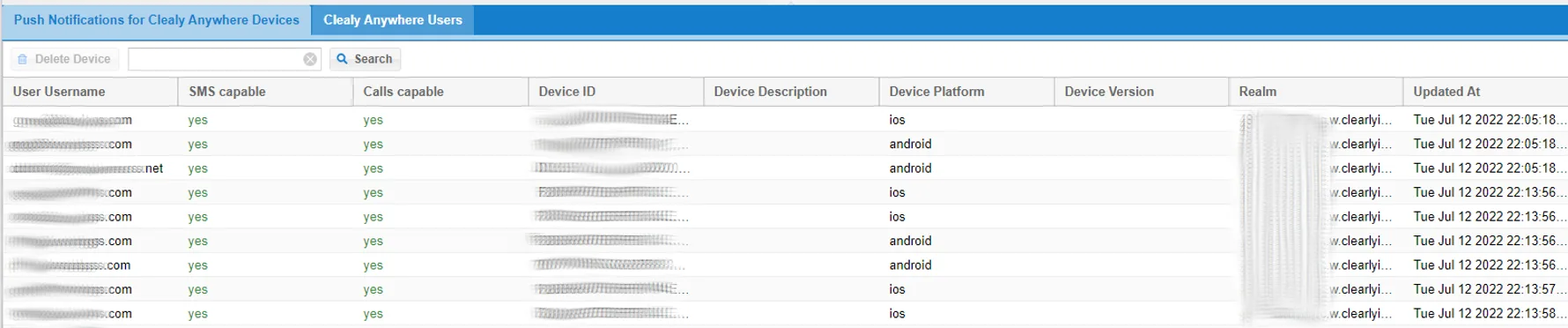
In this menu, you can check the push-notification status for devices using the Clearly Anywhere app. The following information is displayed for all Clearly Anywhere devices belonging to your Clients:
-
User Username: The Cloud username associated with the device.
-
SMS Capable: This lets you know if the device has SMS capabilities or not.
-
Calls Capable: This lets you know if the device has Calling capabilities or not.
-
Device ID: A unique device identification.
-
Device Description: A description of the device.
-
Device Platform: The operating system of the device. We currently support Android and iOS.
-
Device Version: The version of the device operating system.
-
Realm: The realm to which the User and device belong.
-
Updated At: The date and time the push notification information was updated or created.
-
-
You can delete any entry by selecting it with the mouse and then clicking on the Delete Device button after confirmation.

Clearly Anywhere Users
-
In this section, you can check the status of Clearly Anywhere Users from all your Clients using the following information:
-
Username: The Cloud username associated with the device.
-
Email: The User’s email address.
-
First Name: The User’s first name.
-
Last Name: The User’s last name.
-
Auth Token: The authorization token needed to allow the device to register with the realm to which it belongs.
-
Realm: The realm to which the User and device belong.
-

-
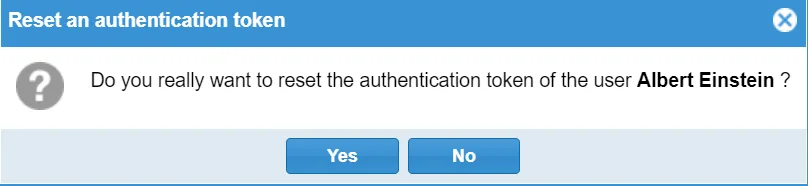
Use Reset Auth Token to reset the authorization token for a User.
-
Click this button to reset the selected User’s authentication token after confirming the action.
Clients
-
Click the Clients menu option.
-
Here you can see all the Clients set up under your Reseller account.

-
To connect and log in as a Client, you can highlight the client from your list of Clients and press the Connect As Client button. You will be logged in automatically as the Client, and you can make all the same changes to the Client that the Client can make themselves as outlined in our Client documentation here.
-
You can edit a Client by highlighting the Client and clicking the Edit Client button.

-
You can edit the following settings for a Client:
-
Main (tab)
-
Contact Information
-
First Name – The first name of the primary User for this Client.
-
Last Name – The last name of the primary User for this Client.
-
Username – The username this Client uses to log in to the Clearly Cloud web interfaces.
-
Email – The email address, which is also the login username for this Client account.
-
Company – The company to which this Client belongs.
-
Language – The default language in which this User wants to view the CloudPBX web GUI.
-
Country – The country in which this Client is located.
-
-
Client Settings
-
Password – This is the password for this Client account to log in.
-
Full Realm – The Full Realm or domain name for this Client. Use this Full Realm to register a device for the Client.
-
-
Client Profiles
-
Here you define which Profiles are assigned to this Client. See the User Profiles section below for more information.
-
You can assign one or more Profiles to a Client and set one Profile as the default. This becomes the default profile assigned to each Client User when new Users are created, as outlined in the User Documentation here.
-
-
-

-
Advanced (tab)
-
Time Zone – The Client’s time zone. Time Conditions and Call Flows for this Client are based on this time zone.
-
Memo – A text box for information about this Client. Think of it as a notepad for Client information.
-
Status – A friendly way to track which Clients are in production versus not in production. This setting has no bearing on the system itself; it’s a reference field for you only.
-
Stream and download call recordings – If enabled, the Client login User can stream and download all call recordings. If not enabled, only an end user logged in directly as that end user can stream and download their own call recordings.
-
Device Registration Status
-
Here we can see a list of all active registered phones and devices for all Clients under your Reseller Account.
-
Click the Device Registration Status menu option.


Dialed Number Rewrite
-
This feature allows you to filter and replace a number when dialing it.
-
Any rules you add, update or delete will be replicated and applied to all your clients.
-
Click the Dialed Number Rewrite menu option.

-
This section will display the current dial patterns in your instance.
-
These dial patterns are used when dialing outbound numbers.

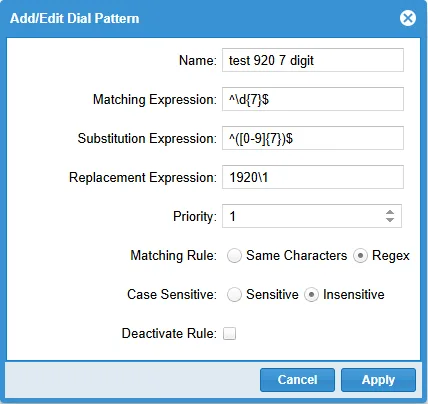
Click on Add Dial Pattern to add a dial pattern. A small window will open where you can enter the following information.
-
Name: Name or Description of the Dial Pattern.
-
Matching Expression: This is the regular expression or string the system will try to detect.
-
Substitution Expression: The regular expression or string used to replace any match found.
-
Replacement Expression: This is the text or number that each regular expression match is replaced with during the ‘search and replace’ process.
-
Priority: Priority of rule.
-
Matching Rule: Matching operator for the rule (0-same characters, 1-regex).
-
Case sensitive: Whether the rule is case-sensitive.
-
Deactivate Rule: Whether the dial pattern is enabled or disabled.
-
Here is an example for setting up a Dial Pattern to add an area code to 7-digit numbers for users that aren’t accustomed to dialing with an area code.
-
Matching Expression explanation:
-
^ : Start of the line.
-
d : We are going to search for digits.
-
{7} : The number of digits to search for; seven in this example.
-
$ : End of the line.
-
In other words, we are going to look for any number 7 digits long.
-
-
Substitution Expression explanation:
-
^ : Start of the line.
-
() : Grouped.
- [0-9] : Any digit between 0-9 (This is what will be replaced).
-
{7} : The number of digits to search for; seven in this example.
-
$ : End of the line.
-
-
Replacement Expression:
-
1920 : Add this to the digits captured.
-
1 = The captured digits; in this case, the full 7-digit number.
-
In other words, we are adding 1920 before the seven captured digits are dialed.
-
-
In most cases, your Matching Expression SHOULD be the same as your Substitution Expression. Matching Expression is what you are looking for.
-
-
-
When adding a Dial Pattern, it is important to check the Priority because it may conflict with default or previously added Dial Pattern entries.
-
When a number is dialed, the system evaluates the rule with the lowest priority value, starting at 0. If multiple patterns have the same priority, the system evaluates them from top to bottom and uses the first match. It does not search the remaining priorities for a better match.
Dialed Number Rewrite Per User
-
This feature allows you to filter and replace a number when dialing it.
-
Each rule you add here will be visible and selectable in your user profiles in addition to rules shared by your administrator.
-
This allows you to perform a number rewrite on a per-User basis.
-
Click the Dialed Number Rewrite menu option.

-
These dial patterns are used when dialing outbound numbers.

Click on Add Dial Pattern to add a dial pattern. A small window will open where you can enter the following information.
-
Name: Name or Description of the Dial Pattern.
-
Matching Expression: This is the regular expression or string the system will try to detect.
-
Substitution Expression: The regular expression or string used to replace any match found.
-
Replacement Expression: This is the text or number that each regular expression match is replaced with during the ‘search and replace’ process.
-
Priority: Priority of rule.
-
Matching Rule: Matching operator for the rule (0-same characters, 1-regex).
-
Case sensitive: Whether the rule is case-sensitive.
-
Deactivate Rule: Whether the dial pattern is enabled or disabled.
-
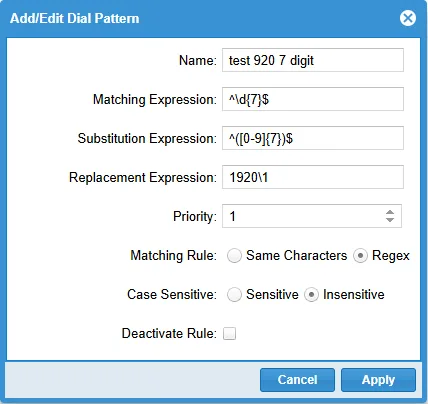
Here is an example for setting up a Dial Pattern to add an area code to 7-digit numbers for users that aren’t accustomed to dialing with an area code.
DID
-
This section displays all Phone Numbers purchased for Clients under your Reseller account. You cannot add numbers here directly. All numbers are provided through the Clearly Cloud Portal, where you can buy or cancel numbers at any time.
-
This module provides a detailed list of all DIDs under your Clients.

-
Here you will see all DIDs (Phone Numbers) set up for your Clients. You cannot edit the information here; it is a reference list of all DIDs. DID routing and related settings are managed at the Client Level as documented here, so you must log in as a Client as outlined here.
Emergency Caller ID
-
For more information on Emergency Caller ID, review our Client documentation here on Emergency Caller ID.
-
Click the Emergency Caller ID menu option.


My Account (Changing your Login Details)
-
Click the My Account menu option.
-
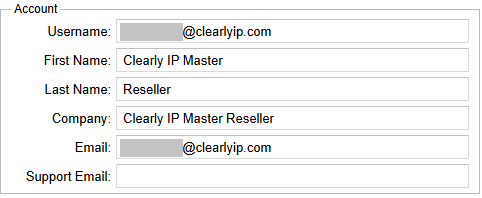
Account – Here you can change your first name, last name, and email address, which is also your login username.
-
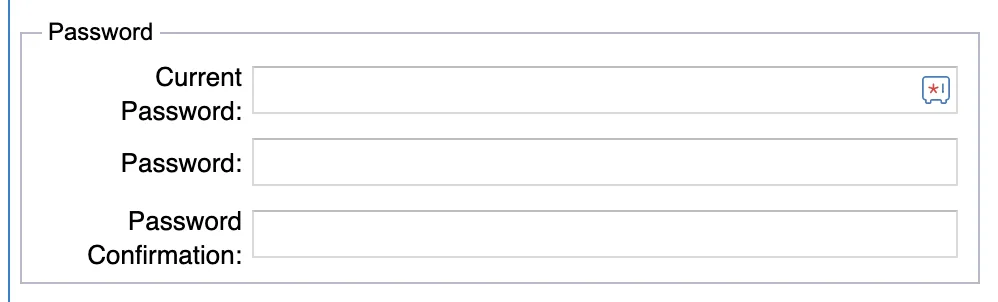
Password – Here you can change your Client-level password.
-
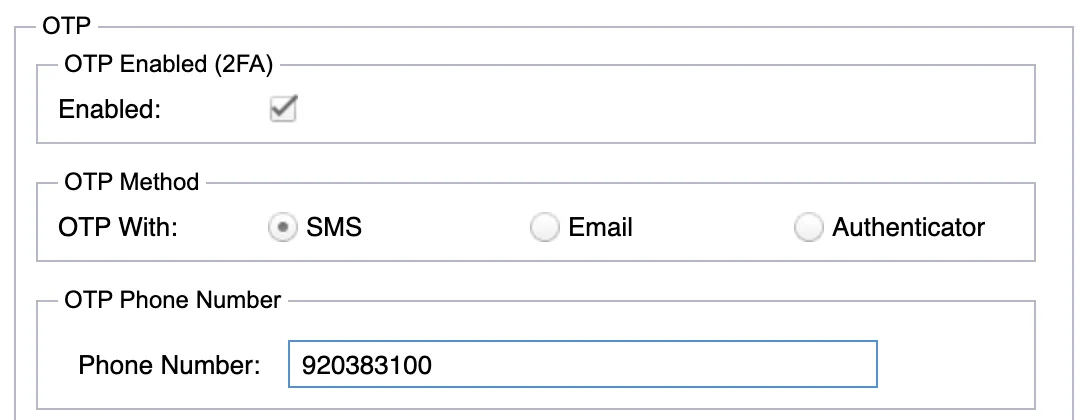
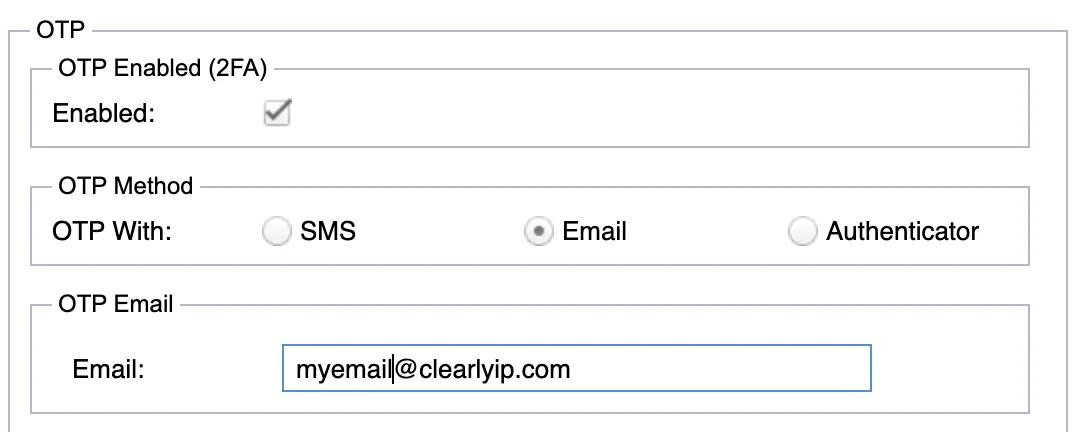
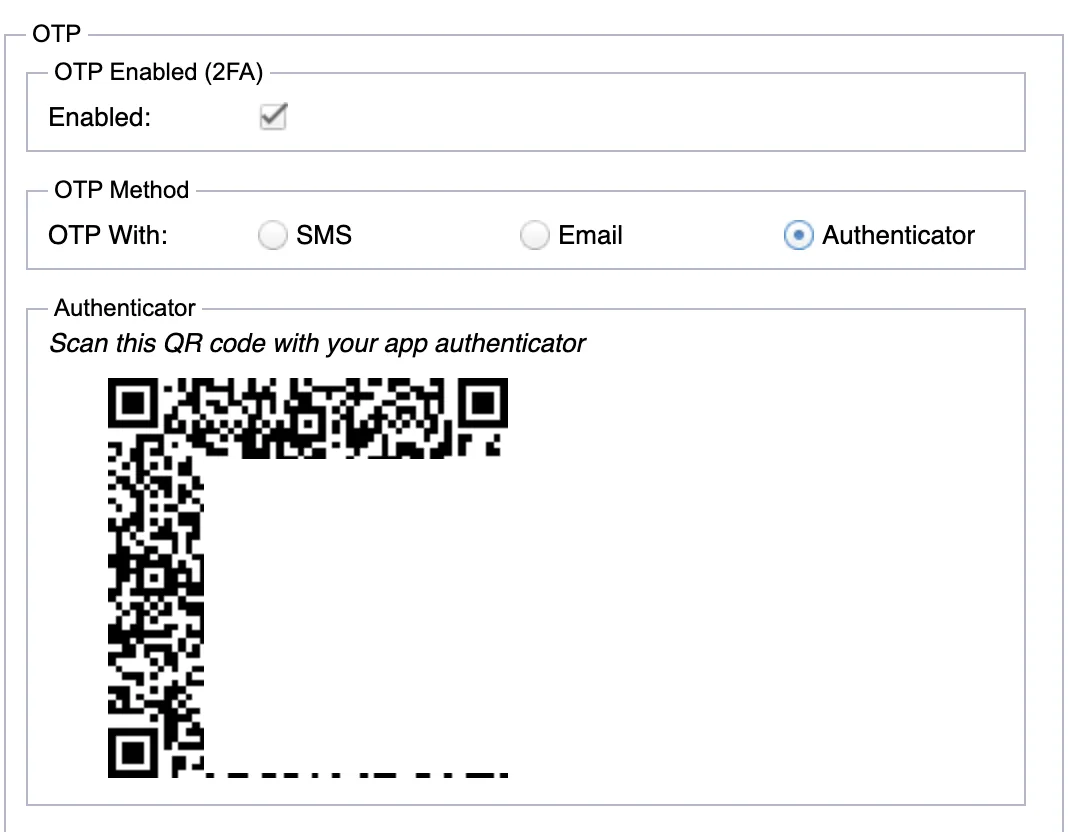
OTP – Here you can enable a One-Time Password, also known as two-factor login, for a User. The supported OTP methods are:
-
SMS – Provide an SMS-capable number. After you log in with your username and password, we will send an SMS containing your One-Time Password as the additional login factor.
-
-
Email – Provide an email address. After you log in with your username and password, we will send an email containing your One-Time Password as the additional login factor.
-
Authenticator App – Download and install a third-party two-factor authentication app on your mobile device or computer, then scan the QR code generated here.
-
Backup Codes – Click this button to reveal backup codes that you can store somewhere safe. Use them if you cannot access your two-factor option, such as when you lose a cell phone that is set up for SMS.

-
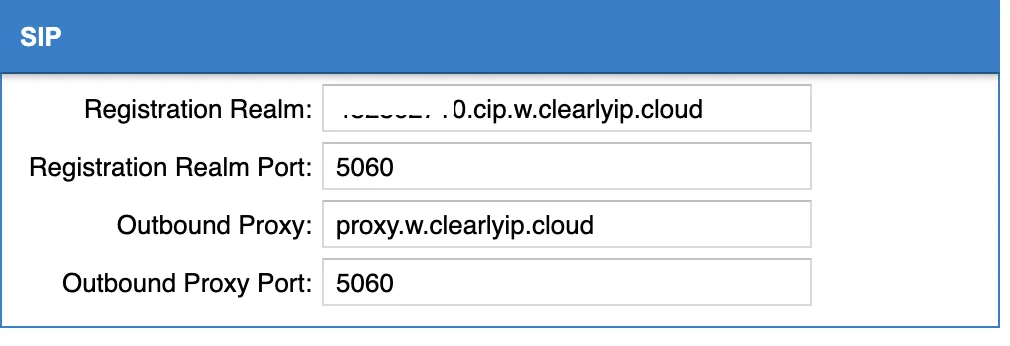
SIP – Here is where we can see our Client Realm and Outbound Proxy for this client in the event you need to register a SIP device manually.
Reports
-
To access the Reports menu, click the Reports icon.
-
Under the Reports tab, you will see two menu options:
-
Activity Log
-
Duplicated nated userloc
-

Activity Log
-
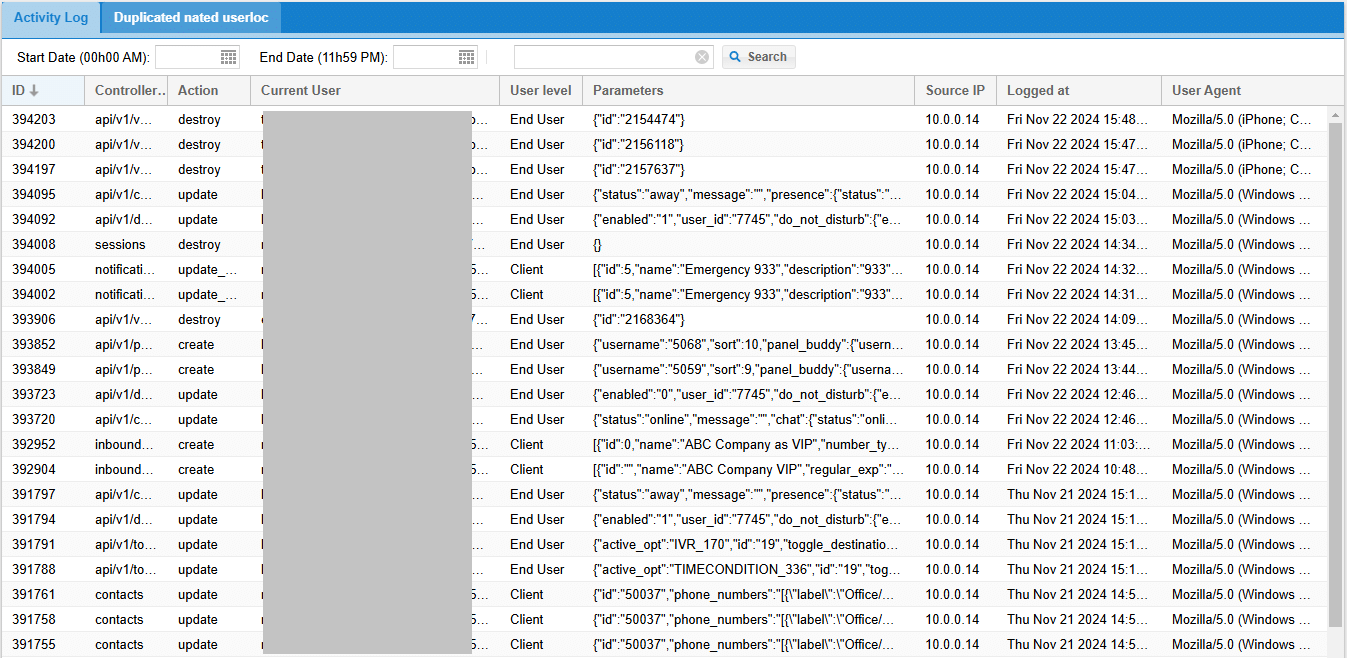
In this menu, you will see a report of all activities performed by any User. You can use it to track changes a User has made to any configuration point in your instance or instances.
-
The report will show the following information:
-
ID: An identification number assigned by the system.
-
Controller: The resource modified. In other words, this is the menu where the modification was made.
-
Action: The action performed by the User on an entry. These actions can be:
-
Create
-
Update
-
Destroy
-
-
Current User: The username of the user that performed the action
-
User Level: The level of the user that performed the action. These levels are:
-
Client
-
End-User
-
Reseller
-
-
Parameters: The parameters updated by the User. If these parameters are difficult to read, copy and paste them into a text editor.
-
Source IP: The IP address of the User who applied a change in the menu.
-
Logged at: The date on which the modification was applied.
-
User Agent: A resource to identify the web browser and the operating system of the user.
-
-
As you can see, you can search through the Activity Log by date and perform a search based on any criteria.

-
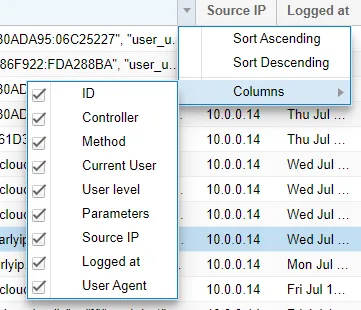
You can right-click on any column header to sort the order of the rows and to select what columns you would like to be displayed in the report according to your needs.
Duplicated nated userloc
-
This report will show if you have two devices from the same external IP address, such as your office, both trying to use the same NAT port for SIP. If this happens, it will create issues. When we send a call to a phone, the route would not know which device to send the phone to. This usually happens because of NAT issues related to SIP ALG on a firewall or SIP helpers trying to help but get in the way.
-
This report will only show devices that are sharing the same Public IP and NAT port for SIP.
-
If the report is empty, that means you have no duplicated NAT devices.
-
Click on the Duplicated nated userloc tab

Reseller Limited Accounts
-
If you need an additional account to help manage your Clients, you can set it up in the Reseller Limited Accounts menu.

-
To create a Reseller Limited Account, click Add Reseller Account.
-
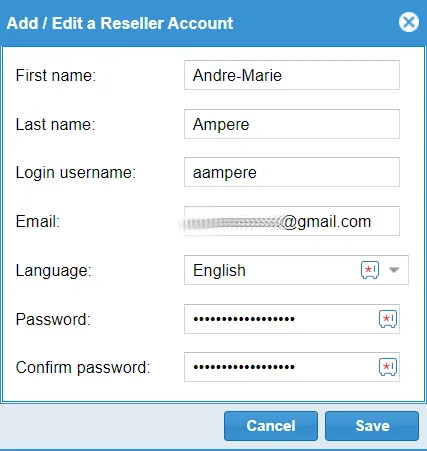
Enter the following user’s information:
-
First Name
-
Last Name
-
Login username
-
Email
-
Language: You can choose the language of the interface. English and French are currently supported.
-
Password
-
Confirm Password
-
-
After selecting a User, you can edit or delete the Reseller Account, or connect as that Reseller Account. You can also search for any Limited Reseller Account.

-
You can test the User you created by clicking Connect as Reseller Limited, then review the Users they created and the permissions available to them.

Settings
-
These settings relate to your Reseller account.
-
Click the Settings menu option.

-
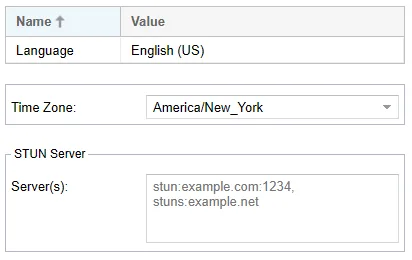
The following settings are available for your Reseller account:
-
Language – The default language in which you want to view the CloudPBX web GUI.
-
Time Zone – The time zone to use for your Reseller account.
-
STUN Server – One or more customer-wide STUN Servers can aid the proper routing of Call Panel webphone audio streams.
-
User Profiles
-
User Profiles are mainly used to apply dial rules to Users under a Client. A User Profile, once created, can be shared with one or more Clients. Additionally, any User of that client can be assigned to the User Profile.
-
User Profiles control which Outbound Routes a User can call, such as US and Canada or International, along with features such as Call Waiting and Voicemail that the User’s extension can access.
-
Click the User Profiles menu option.
-
From here, we can see a list of User Profiles that exist for your Reseller Account. By default, all Resellers get an auto-created Default User Profile. You can also see how many users are assigned to a specific User Profile.

-
Highlight an existing User Profile, then click Edit to modify it or Delete to remove it.

-
Pressing the Add button will let you create a new User Profile.

-
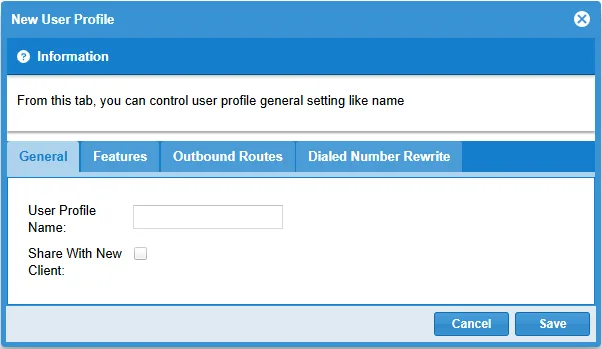
User Profile settings are organized into four tabs:
-
General
-
Features
-
Outbound Routes
-
Dialed Number Rewrite
-
-
General (tab)
-
User Profile Name – The name you want to give this User Profile.
-
-
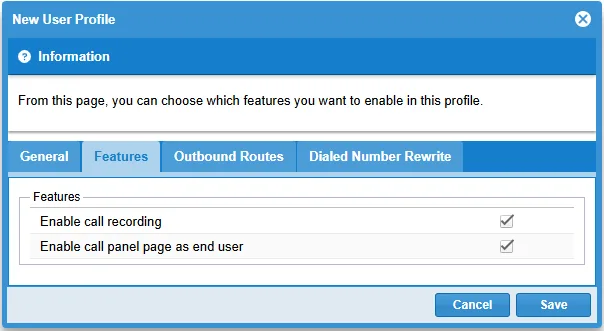
Features (tab) – Here you can enable features that control what Users assigned to this User Profile can do with their phones and what they see in the WebGUI when they log in as an End User as outlined here.
-
Enable Call recording – If checked, this will enable all calls for users of this Profile to have their calls automatically recorded.
-
Enable call panel page as end-user – If checked, this enables Call Panel access for all Users assigned to this Profile and lets them log in to Call Panel.
-
-
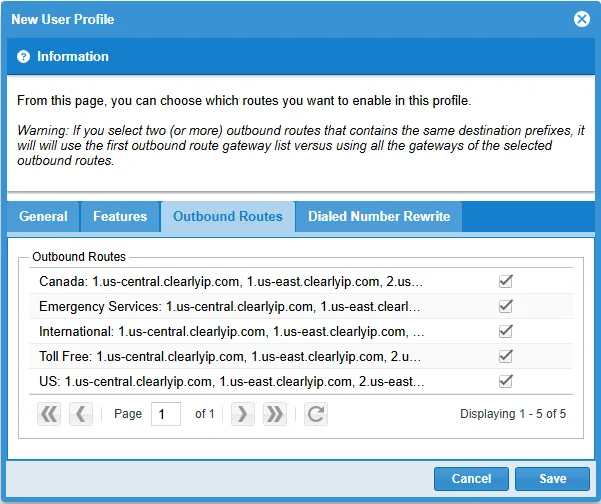
Outbound Routes (tab) – Here, you can pick which outbound routes the users who have this User Profile can use when making outbound calls.
-
Enable or disable each Outbound Route that is active on the system. The following are the standard four outbound routes we have created for all Resellers.
-
Toll Free – The ability to call toll-free numbers by dialing 1 plus the 10-digit number, or just the 10-digit number.
-
Canada – The ability to call Canadian area codes by dialing 1 plus the 10-digit number, or just the 10-digit number.
-
US – The ability to call US-based area codes by dialing 1 plus the 10-digit number, or just the 10-digit number.
-
International – The ability to call most international destinations by dialing 011 plus the country code and number.
-
-
-
Dialed Number Rewrite (tab) – Here you can select the dialed number rewrite rules used by Users assigned to this User Profile when they make outbound calls.
-
Enable or disable each Dialed Number Rewrite rule that is active on the system.
-

Users
-
Users serve two purposes in CloudPBX. Each User has a login for the CloudPBX End User Level and Call Panel. A User also has an extension that allows one or more desk phones or softphones to connect to the CloudPBX Client under which the User is configured.
-
Click the Users menu option.

-
For more information on managing Users, review our Client documentation on Users.
Sign Out
-
To sign out of the Client Portal, click the Sign Out menu option.

-
You will be signed out and returned to the login page.





'/%3E%3C/svg%3E)

'/%3E%3C/svg%3E)
'/%3E%3Cpath%20d='m720%20345%2015-45%2015%2045-39-28h48'/%3E%3Cpath%20id='s'%20d='m675%2057%208%2026%2026-10-15%2023%2023%2014-27%202%204%2027-19-20-19%2020%204-27-27-2%2023-14-15-23%2026%2010'/%3E%3Cuse%20href='%23s'%20x='133'%20y='123'/%3E%3Cuse%20href='%23s'%20x='-150'%20y='163'/%3E%3Cuse%20href='%23s'%20y='400'/%3E%3Cuse%20href='%23s'%20transform='matrix(2.1%200%200%202.1%20-1192%20240)'/%3E%3C/svg%3E)

'/%3E%3C/g%3E%3Cuse%20x='525'%20href='%23b'/%3E%3C/g%3E%3Cuse%20y='375'%20href='%23c'/%3E%3C/svg%3E)
