
Using 14IP Conference Room Phone App
Monitoring Conference Rooms
-
Select the Conference SoftKey on your phone
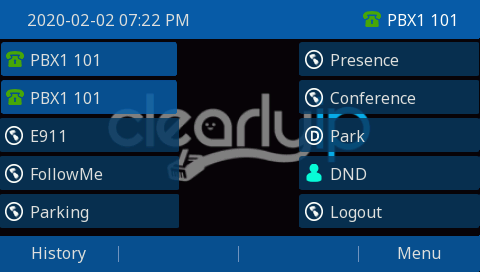
-
You will see a list of allowed Conference Rooms, and how many users are currently in each room.
Note: You will Only see the those Conference Rooms your user is allowed to see via User Manager permissions

Managing users in Conference Rooms
-
Select the Conference SoftKey on your phone
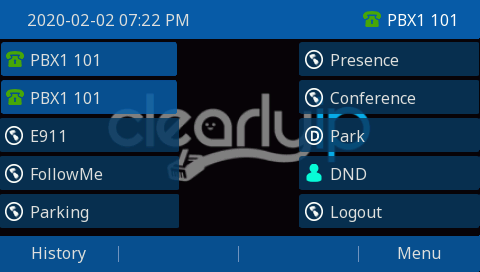
-
Navigate to the Conference Room of the Users you want to Manage, Select View.
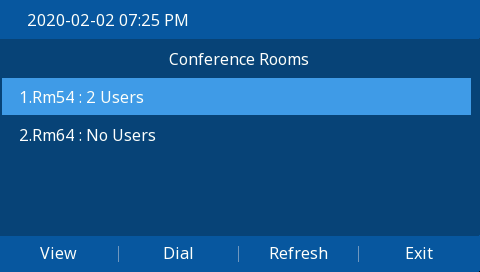
-
You will see a list of users currently in that Conference Room
-
Select the user you want to Kick or Mute/Unmute, and select Action
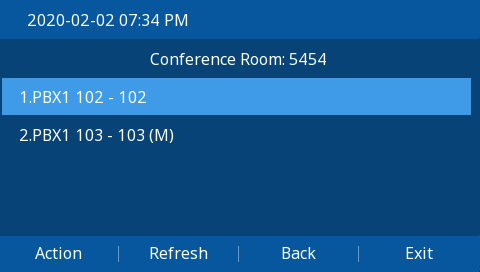
5. Select the desired action

Allow Users Access to Conference Phone App in User Management
-
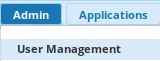
Navigate to Admin –> User Management
-
Select the Users or Groups tab
Note: Typically it’s best to set permissions at the Group Level, but ultimately depends on your organization and if the setting will be a one off exception or should apply to a group of users.

-
Select Edit Icon for the User/Group you wish to grant access to the Conference Phone App
-
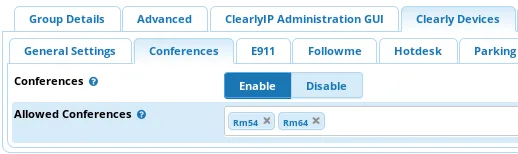
Select the Clearly Devices Tab.
-
Select the Conferences Tab, and make sure Enable is selected, and the desired rooms are selected.
-
Select Submit & Apply to save your changes






'/%3E%3C/svg%3E)

'/%3E%3C/svg%3E)
'/%3E%3Cpath%20d='m720%20345%2015-45%2015%2045-39-28h48'/%3E%3Cpath%20id='s'%20d='m675%2057%208%2026%2026-10-15%2023%2023%2014-27%202%204%2027-19-20-19%2020%204-27-27-2%2023-14-15-23%2026%2010'/%3E%3Cuse%20href='%23s'%20x='133'%20y='123'/%3E%3Cuse%20href='%23s'%20x='-150'%20y='163'/%3E%3Cuse%20href='%23s'%20y='400'/%3E%3Cuse%20href='%23s'%20transform='matrix(2.1%200%200%202.1%20-1192%20240)'/%3E%3C/svg%3E)

'/%3E%3C/g%3E%3Cuse%20x='525'%20href='%23b'/%3E%3C/g%3E%3Cuse%20y='375'%20href='%23c'/%3E%3C/svg%3E)
