
Overview
The 14IP FollowMe Phone App allows users to configure and toggle their FreePBX® FollowMe settings from their Deskphone.
Setting Up FollowMe from 14IP Phone App
Adding Numbers
-
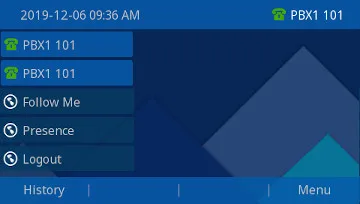
Press the Follow Me button on the Phones Home Screen.
-
Press the Settings button on the next screen.

-
Select the Modify button for the Numbers option.

-
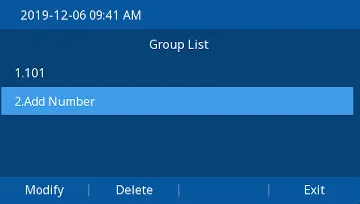
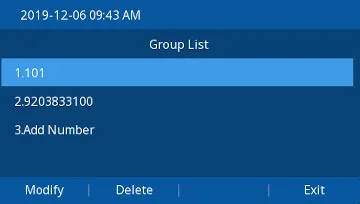
Arrow down to Add Number, and select Modify.
-
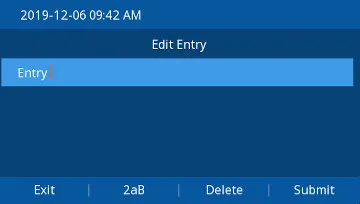
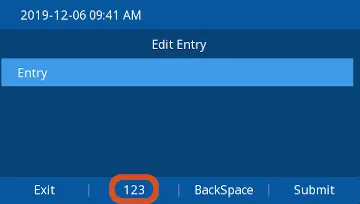
Toggle the input type to numbers, if it’s not already, by pressing the Second Horizontal Button until it shows 123
-
Enter the number you want Follow Me calls to forward to, and Press Submit.

7. Press Exit
Initial Ringtime
-
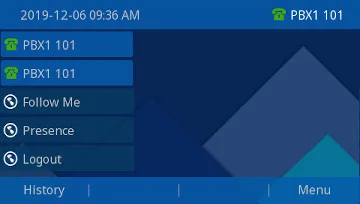
Press the Follow Me button on the Phones Home Screen.
-
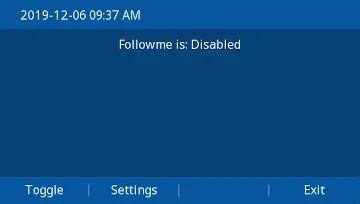
Press the Settings button on the next screen.
-
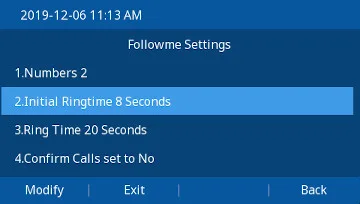
Arrow down to Initial Ringtime, press the Modify button.
-
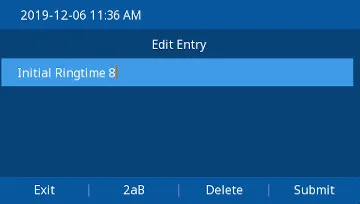
Delete the Existing entry and type the desired Initial Ringtime, and press Submit
Note: This is the time (in seconds) your Extension will Ring BEFORE sending the call to you FollowMe Extensions. 4 seconds is approximately one "ring".
Ring Time
-
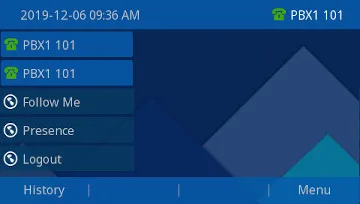
Press the Follow Me button on the Phones Home Screen.
-
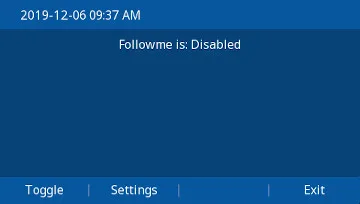
Press the Settings button on the next screen.
-
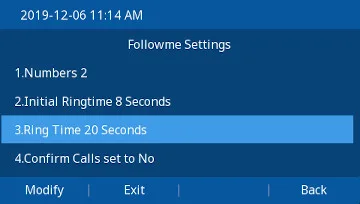
Arrow down to Ringtime, press the Modify button.
-
Delete the Existing entry and type the desired Ringtime, and press Submit
Note: This is time (In Seconds) the call will ring your FollowMe Phones.

Confirm Calls
-
Press the Follow Me button on the Phones Home Screen.

-
Press the Settings button on the next screen.
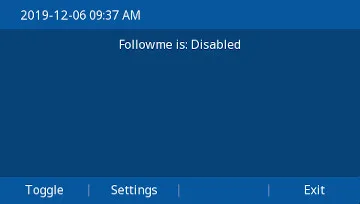
-
Arrow down to Confirm Calls, press the Modify button.
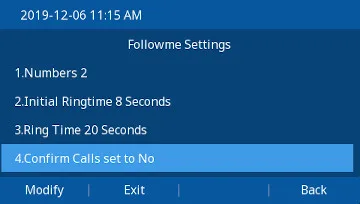
-
Press the Toggle State Button to Toggle Confirm calls on and off.
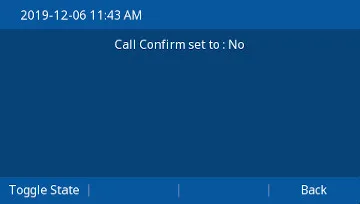
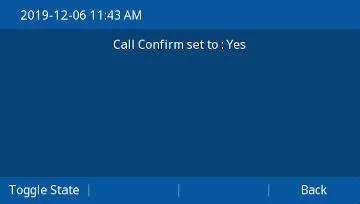
-
Press Back to return to the Main Menu.
Toggling FollowMe On and Off
-
Press the Follow Me button on the Phones Home Screen.
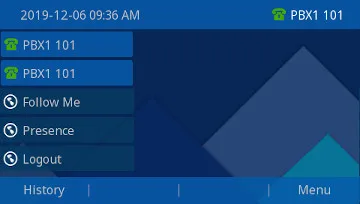
-
Press the Toggle button on the next screen.
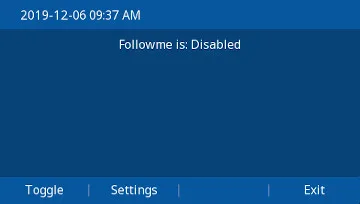
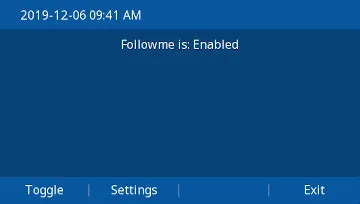
-
Press the Exit Button until you are back to the Home Screen





'/%3E%3C/svg%3E)

'/%3E%3C/svg%3E)
'/%3E%3Cpath%20d='m720%20345%2015-45%2015%2045-39-28h48'/%3E%3Cpath%20id='s'%20d='m675%2057%208%2026%2026-10-15%2023%2023%2014-27%202%204%2027-19-20-19%2020%204-27-27-2%2023-14-15-23%2026%2010'/%3E%3Cuse%20href='%23s'%20x='133'%20y='123'/%3E%3Cuse%20href='%23s'%20x='-150'%20y='163'/%3E%3Cuse%20href='%23s'%20y='400'/%3E%3Cuse%20href='%23s'%20transform='matrix(2.1%200%200%202.1%20-1192%20240)'/%3E%3C/svg%3E)

'/%3E%3C/g%3E%3Cuse%20x='525'%20href='%23b'/%3E%3C/g%3E%3Cuse%20y='375'%20href='%23c'/%3E%3C/svg%3E)
